
Dashboard
The Dashboard serves as the central observability hub within the control plane, giving users full visibility into their LLM application performance and behavior.
The Dashboard provides an interactive visual interface that consolidates critical data, metrics, and performance indicators generated by LLM applications into a structured, easily interpretable format. It enables users to monitor, debug, and optimize their AI pipelines by tracking every request and execution flow in real time.
Key Metrics
The Dashboard provides insights into key metrics including Cost, Token Usage, Latency, and Traces.
Key Capabilities
a. Create and manage multiple customized dashboards tailored to specific monitoring needs.
b. Gain end-to-end visibility into LLM application behavior across the control plane.
c. Analyze real-time and historical data to make informed decisions on performance and cost optimization.
Functionality in Control Plane
Within the control plane, three default dashboards are available out of the box. Users can further extend this by creating a new dashboard, cloning an existing one, or modifying widgets to meet specific requirements.
Note: Any newly created or cloned dashboard is scoped to the specific project in which it is created.
Key Features
a. Data Visualization – Displays information using charts, graphs, tables, and gauges for better understanding.
b. Real-Time Monitoring – Provides up-to-date insights by connecting to live data sources.
c. User Interactivity – Supports filters, drill-down capabilities, and dynamic data views for deeper analysis.
d. Customizable Layout – Allows users to add, modify, or rearrange widgets to suit their needs.
How to Create a New Dashboard
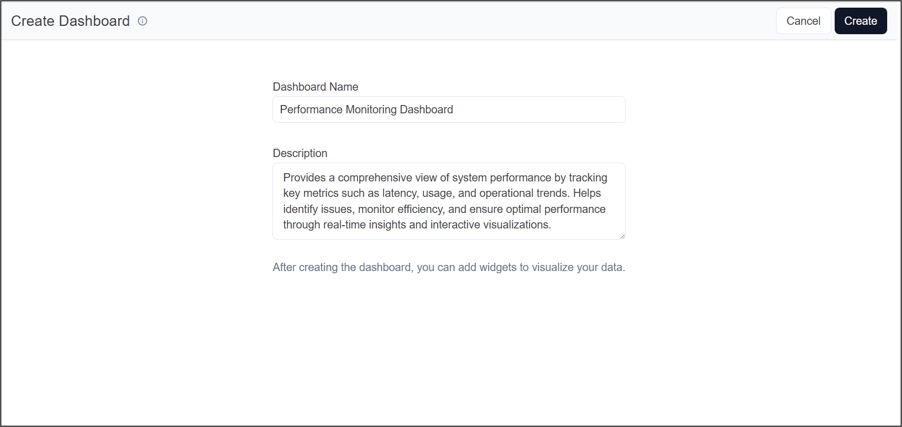
Step 1: Create Dashboard
1. Enter the Dashboard Name.
2. Provide a Description
3. Click on Create.
Once created, the dashboard page will be displayed.
Step 2
Add Widgets
1. On the dashboard page, click on + Add Widget.
2. By default, five widgets details will be available.
3. Select the required widget(s).
4. Click on Add Selected Widget.
The selected widgets will be added to the dashboard.
OR
Creating New Widget
1. Click on the Create New Widget option.
2. Configure the widget based on your requirements. (Refer to the widget creation guide)
Click on Cancel if you do not want to add any widget.
Widget Actions
Once a widget is added to the dashboard, you can add one or more widgets as needed. Each widget includes the following options in the top bar:
1. Auto-Save – Enables automatic saving of updates (and allows repositioning of the widget).
2. Edit – Allows you to modify the configuration and settings of the widget.
3. Delete – Removes the widget from the dashboard.
4. Download – Exports the widget data as an Excel file.
