Interact Pre-configuration
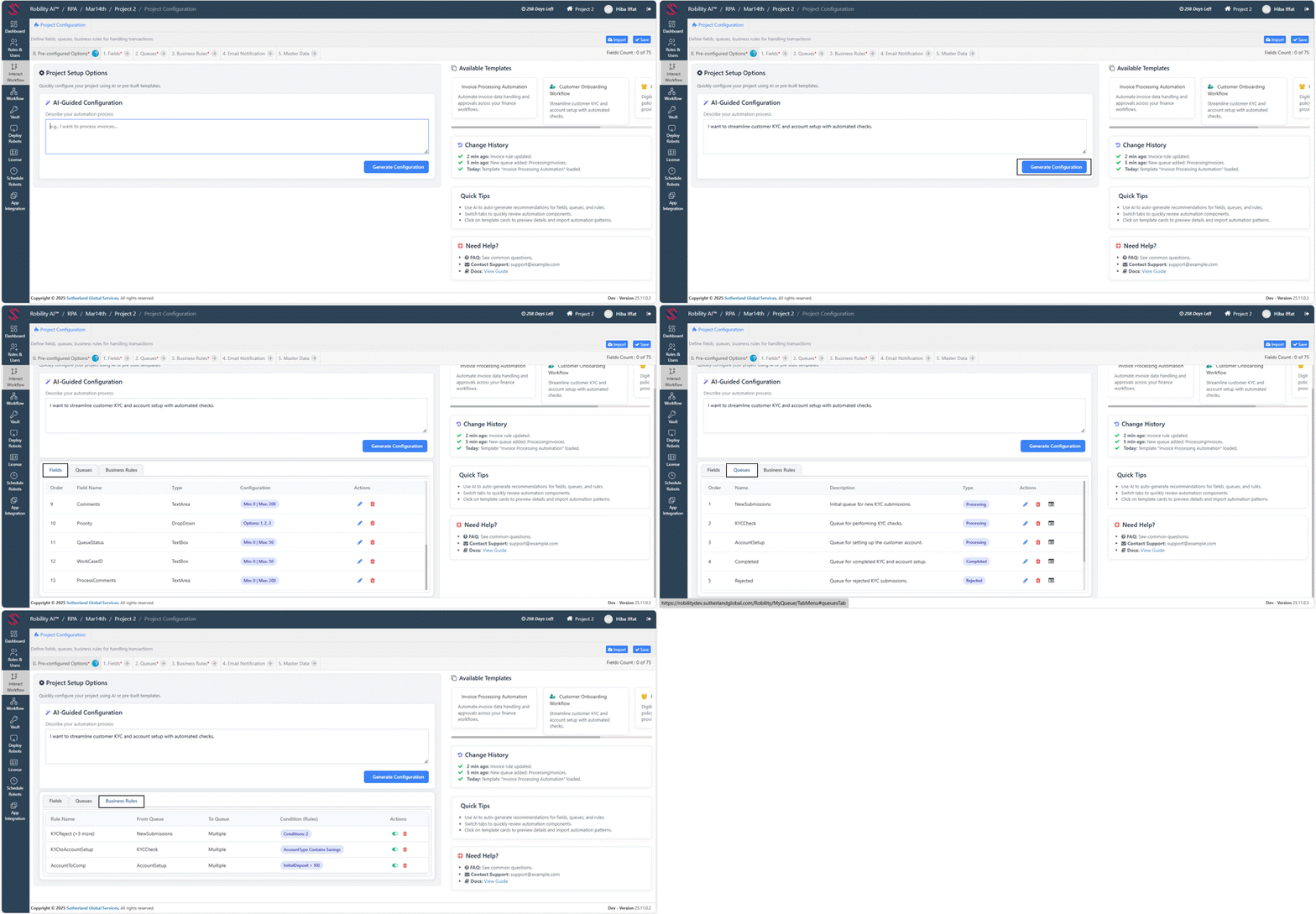
Interact Pre-Configuration is a guided setup feature in Robility Manager that helps you quickly build your automation project using AI or pre-built templates. Instead of manually defining fields, queues, business rules, and notifications from scratch, this feature simplifies the entire setup by providing intelligent recommendations and ready-made configurations.
Whether you’re a process expert describing your workflow or a developer needing a quick starting point, this feature streamlines project creation and makes Robility’s Interact module more accessible and efficient for everyone.
What This Feature Is?
Interact Pre-Configuration is a project setup workspace where you can:
1. Describe your automation process in plain language using AI-Guided Configuration.
2. Choose from pre-built templates such as Invoice Processing or Customer Onboarding.
3. Automatically generate:
a. Fields
b. Queues
c. Business rules
The interface also provides Change History, Quick Tips, and access to help documentation—ensuring users know what changes were applied and where to navigate next.
Why This Feature Is Needed?
Building an automation project typically requires deep knowledge of:
a. Data structures
b. Queue design with respective field mappings
c. Routing logic with Business rules
For many users, especially business users or new developers, this can be time-consuming and challenging.
The Pre-Configuration feature eliminates this complexity by enabling:
a. Faster project setup
b. Consistent best-practice configurationsc. Lower risk of configuration errors
How It Helps
1. Simple, natural-language input: You can describe your process in everyday words (e.g., “I want to process invoices”), and the system generates the structure automatically.
2. Ready-to-use templates: No need to understand technical components, simply pick a template and the system configures everything behind the scenes.
3. Clear guidance: Quick tips and help links ensure you always know what to do next.
4. Visual feedback: Change History shows what was created or updated, making the system feel more transparent.
5. Easy to customize: After the initial configuration is generated, developers can fine-tune or extend components as needed.
How to Use Interact Pre-Configuration
1. AI-Guided Configuration
a. Enter a simple description of your process in the text box.
b. Example: “I want to process invoices and route them for approval.”
c. Click Generate Configuration.
d. The system automatically creates fields, queues, and rules based on the description.
e. Click on Save button to update the configuration.
2. Using Pre-Built Templates
a. You can also utilize the pre-built templates on the right panel, choose a template such as: Invoice Processing Automation, Customer Onboarding Workflow.
b. The system loads all template components instantly.
c. Review any generated items using the step tabs (Fields, Queues, and Business Rules).
d. Click on Save button to update the configuration.
3. Reviewing Changes
a. The Change History panel shows everything the system added or modified (e.g., “New queue added: ProcessingInvoices”). This helps you track and audit auto-generated configurations.