
Flow Control
Logic components provide functionalities for routing, conditional processing, and flow management.
If-Else (conditional router)
The If-Else component is a conditional router that routes messages by comparing two strings. It evaluates a condition by comparing two text inputs using the specified operator and then routes the message to true_result or false_result depending on the evaluation.
The operator looks for single strings in the input (input_text) based on an operator and match text (match_text), but it can also search for multiple words by matching a regex. Available operators include:
a. equals: Exact match comparison
b. not equals: Inverse of exact match
c. contains: Checks if the match_text is found within input_text
d. starts with: Checks if input_text begins with match_text
e. ends with: Checks if input_text ends with match_text
f. regex: Matches on a case-sensitive pattern
By default, all operators are case insensitive except regex. Regex is always case sensitive, and you can enable case sensitivity for all other operators in the If-Else parameters.
Use the If-Else component in a flow
The following example uses the If-Else component to check incoming chat messages with regex matching and then output a different response depending on whether the match evaluated to be true or false.
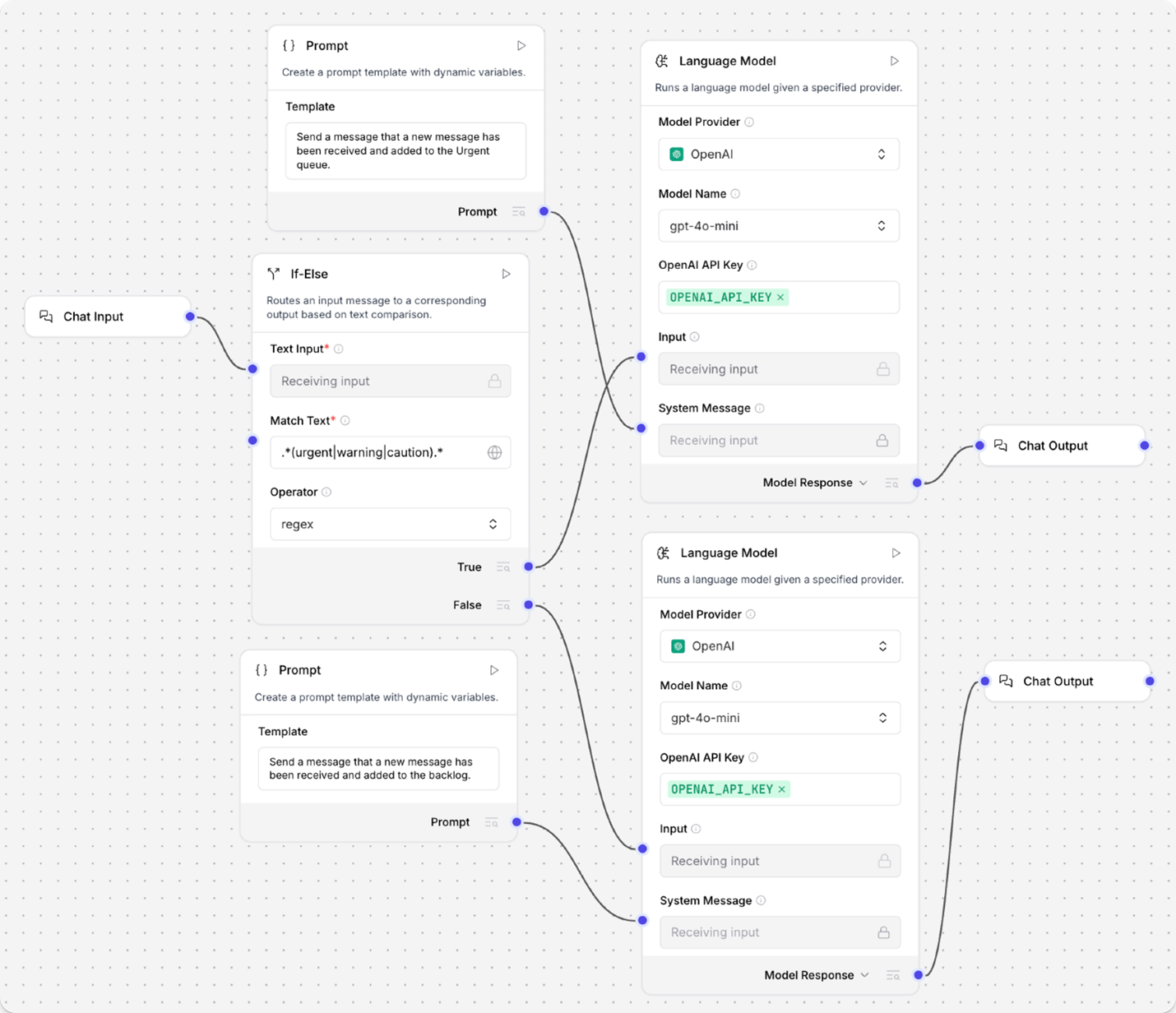
1. Add an If-Else component to your flow, and then configure it as follows:
a. Text Input: Connect the Text Input port to a Chat Input component or another Message input.
If your input isn’t in Message format, you can use another component to transform it, such as the Type Convert component or Parser component. If your input isn’t appropriate for Message format, consider using another component for conditional routing, such as the Data Operations component.
a. Match Text: Enter.*(urgent|warning|caution). * so the component looks for these values in incoming input. The regex match is case sensitive, so if you need to look for all permutations of warning, enter warning|Warning|WARNING.
b. Operator: Select regex.
c. Case True: In the component’s header menu, click Controls, enable the Case True parameter, click Close, and then enter New Message Detected in the field.
The Case True message is sent from the True output port when the match condition evaluates to true.
No message is set for Case False so the component doesn’t emit a message when the condition evaluates to false.
2. Depending on what you want to happen when the outcome is True, add components to your flow to execute that logic:
a. Add a Language Model, Prompt Template, and Chat Output component to your flow.
b. In the Language Model component, enter your OpenAI API key or select a different provider and model.
c. Connect the If-Elsecomponent’s Trueoutput port to the Language Model component’s Input
d. In the Prompt Templatecomponent, enter instructions for the model when the evaluation is true, such as Send a message that a new warning, caution, or urgent message was received.
e. Connect the Prompt Templatecomponent to the Language Modelcomponent’s System Message
f. Connect the Language Modelcomponent’s output to the Chat Output
3. Repeat the same process with another set of Language Model, Prompt Template, and Chat Output components for the False outcome.
Connect the If-Else component’s False output port to the second Language Model component’s Input port. In the second Prompt Template, enter instructions for the model when the evaluation is false, such as Send a message that a new low-priority message was received.
4. To test the flow, open the Playground, and then send the flow some messages with and without your regex strings. The chat output should reflect the instructions in your prompts based on the regex evaluation.
User: A new user was created.
AI: A new low-priority message was received.
User: Sign-in warning: new user locked out.
AI: A new warning, caution, or urgent message was received. Please review it at your earliest convenience.
If-Else parameters
Some parameters are hidden by default in the visual editor. You can modify all parameters through the Controls in the component’s header menu.
| Name | Type | Description |
|---|---|---|
| input_text | String | Input parameter. The primary text input for the operation. |
| match_text | String | Input parameter. The text to compare against. |
| operator | Dropdown | Input parameter. The operator used to compare texts. Options include equals, not equals, contains, starts with, ends with, and regex. The default is equals. |
| case_sensitive | Boolean | Input parameter. When true, the comparison is case sensitive. The default is false. This setting doesn't apply to regex comparisons. |
| max_iterations | Integer | Input parameter. The maximum number of iterations allowed for the conditional router. The default is 10. |
| default_route | Dropdown | Input parameter. The route to take when max iterations are reached. Options include true_result or false_result. The default is false_result. |
| true_result | Message | Output parameter. The output produced when the condition is true. |
| false_result | Message | Output parameter. The output produced when the condition is false. |
Loop
The Loop component iterates over a list of input by passing individual items to other components attached at the Item output port until there are no items left to process. Then, the Loop component passes the aggregated result of all looping to the component connected to the Done port.
The looping process
The Loop component is like a miniature flow within your flow. Here is a breakdown of the looping process:
1. Accepts a list of Data or DataFrame objects, such as a CSV file, through the Loop component’s Inputs port.
2. Splits the input into individual items. For example, a CSV file is broken down by rows.
Specifically, the Loop component repeatedly extracts items by text key in the Data or DataFrame objects until there are no more items to extract. Each item output is a Data objects.
3. Iterates over each item by passing them to the Item output port.
This port connects to one or more components that perform actions on each item. The final component in the Item loop connects back to the Loop component’s Looping port to process the next item.
Only one component connects to the Item port, but you can pass the data through as many components as you need, as long as the last component in the chain connects back to the Looping port.
The If-Else component isn’t compatible with the Loop component. For more information, see Conditional looping.
4. After processing all items, the results are aggregated into a single Data object that is passed from the Loop component’s Done port to the next component in the flow.
The following simplified Python code summarizes how the Loop component works. This isn’t the actual component code; it is only meant to help you understand the general process.
for i in input:             # Receive input data as a list
    process_item(i)         # Process each item through components connected at the Item port
    if has_more_items():
        continue            # Loop back to Looping port to process the next item
    else:
        break               # Exit the loop when no more items are left

done = aggregate_results()  # Compile all returned items

print(done)                 # Send the aggregated results from the Done port to another component
Loop example
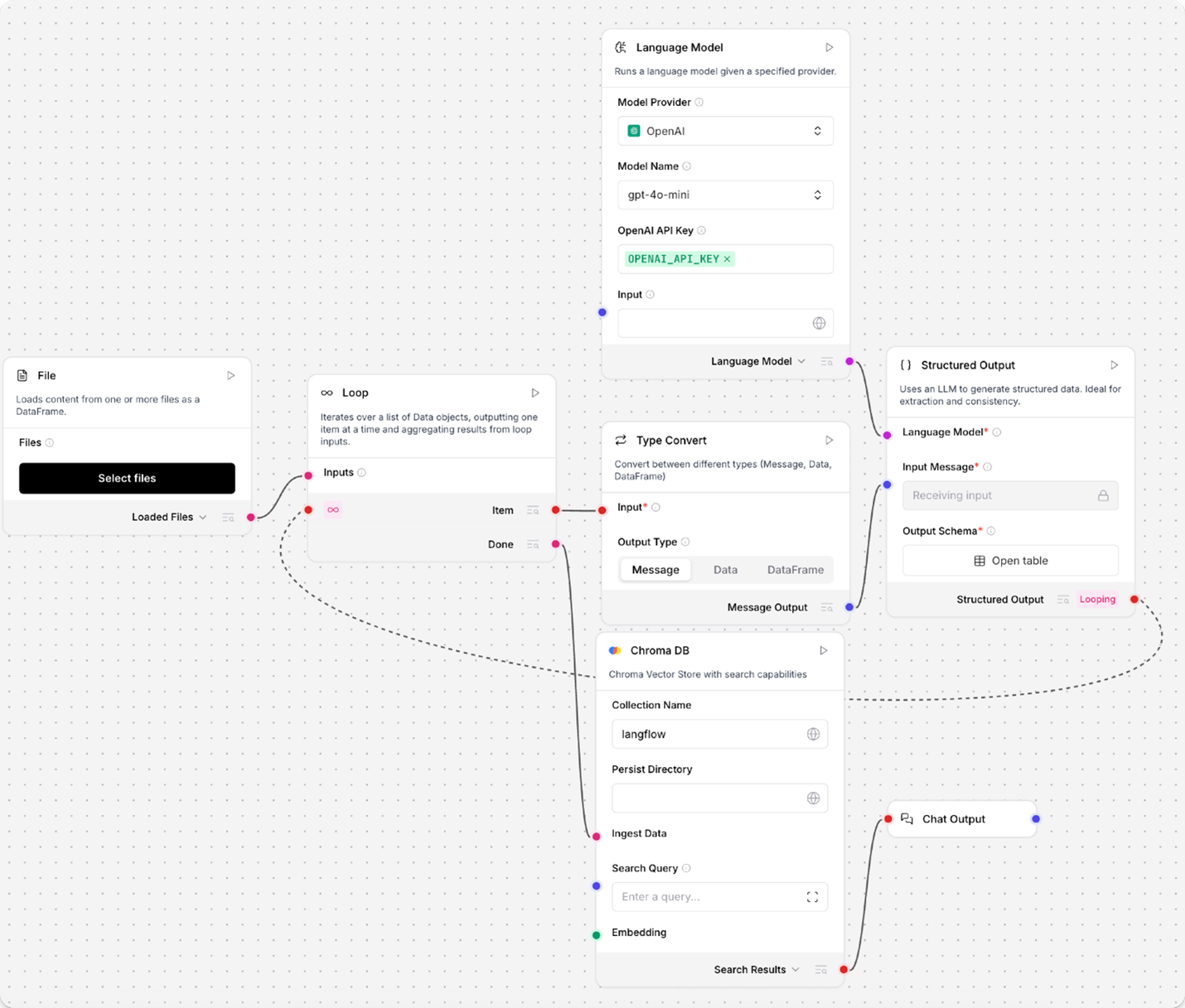
In the following example, the Loop component iterates over a CSV file until there are no rows left to process. In this case, the Item port passes each row to a Type Convert component to convert the row into a Message object, passes the Message to a Structured Output component to be processed into structured data that is then passed back to the Loop component’s Looping port. After processing all rows, the Loop component loads the aggregated list of structured data into a Chroma DB database through the Chroma DB component connected to the Done port.
Conditional looping
The If-Else component isn’t compatible with the Loop component. If you need conditional loop events, redesign your flow to process conditions before the loop. For example, if you are looping over a DataFrame, you could use multiple DataFrame Operations components to conditionally filter data and then run separate loops on each set of filtered data.
Notify and Listen
The Notify and Listen components are used together.
The Notify component builds a notification from the current flow’s context, including specific data content and a status identifier.
The resulting notification is sent to the Listen component. The notification data can then be passed to other components in the flow, such as the If-Else component.
Run flow
The Run Flow component runs another Robilityflow flow as a subprocess of the current flow.
You can use this component to chain flows together, run flows conditionally, and attach flows to Agent components as tools for agents to run as needed.
When used with an agent, the name and description metadata that the agent uses to register the tool are created automatically.
When you select a flow for the Run Flow component, it uses the target flow’s graph structure to dynamically generate input and output fields on the Run Flow component.
Run Flow parameters
Some parameters are hidden by default in the visual editor. You can modify all parameters through the Controls in the component’s header menu.
| Name | Type | Description |
|---|---|---|
| flow_name_selected | Dropdown | Input parameter. The name of the flow to run. |
| session_id | String | Input parameter. The session ID for the flow run, if you want to pass a custom session ID for the subflow. |
| flow_tweak_data | Dict | Input parameter. Dictionary of tweaks to customize the flow's behavior. Available tweaks depend on the selected flow. |
| dynamic inputs | Various | Input parameter. Additional inputs are generated based on the selected flow. |
| run_outputs | A List of types (Data, Message, or DataFrame) | Output parameter. All outputs are generated from running the flow. |
