
Use Robility flow as an MCP server
Robility flow integrates with the Model Context Protocol (MCP) as both an MCP server and an MCP client.
This page describes how to use Robility flow as an MCP server that exposes your flows as tools that MCP clients can use when generating responses.
Robility flow MCP servers support both the streamable HTTP transport and Server-Sent Events (SSE) as a fallback. The default project MCP server configuration uses streamable HTTP transport at the URL path /streamable.
For information about using Robility flow as an MCP client, see Use Robility flow as an MCP client.
Prerequisites
1. A Robility flow project with at least one flow.
2.The Chat Output component is required to use a flow as an MCP tool.
3. Any LTS version of Node.js installed on your computer if you want to use MCP Inspector to test and debug flows.
4. ngrok installed and an ngrok authtoken if you want to deploy a public Robility flow server.
Select and configure flows to expose as MCP tools
MCP flow requirements
A flow must contain a Chat Output component to be used as a tool by MCP clients.
Each Robility flow project has an MCP server that exposes the project’s flows as tools that MCP clients can use to generate responses.
By default, all flows in a project are exposed as tools on the project’s MCP server.
The following steps explain how to limit the exposed flows and, optionally, rename flows for agentic use:
1. From the Robility flow dashboard, select the project that contains the flows you want to serve as tools, and then click the MCP Server tab. Alternatively, you can quickly access the MCP Server tab from within any flow by selecting Share > MCP Server.
The Auto install and JSON tabs display options for connecting MCP clients to the project’s MCP server.
The Flows/Tools section lists the flows that are currently being served as tools.
Serve flows as MCP tools
When you create a Robility Flow project, Robility Flow automatically adds the project to your MCP server configuration and makes the project’s flows available as MCP tools.
Selectively enable and disable MCP servers for Robility flow projects
A flow can only be used as a tool by MCP clients if it includes a Chat Output component.
Each Robility flow project automatically provides an MCP server that exposes the project’s flows as tools, which MCP clients can call to generate responses.
By default, every flow in a project is exposed as a tool through that project’s MCP server.
The following steps explain how to use:
1. Click the MCP Server tab on the Projects page
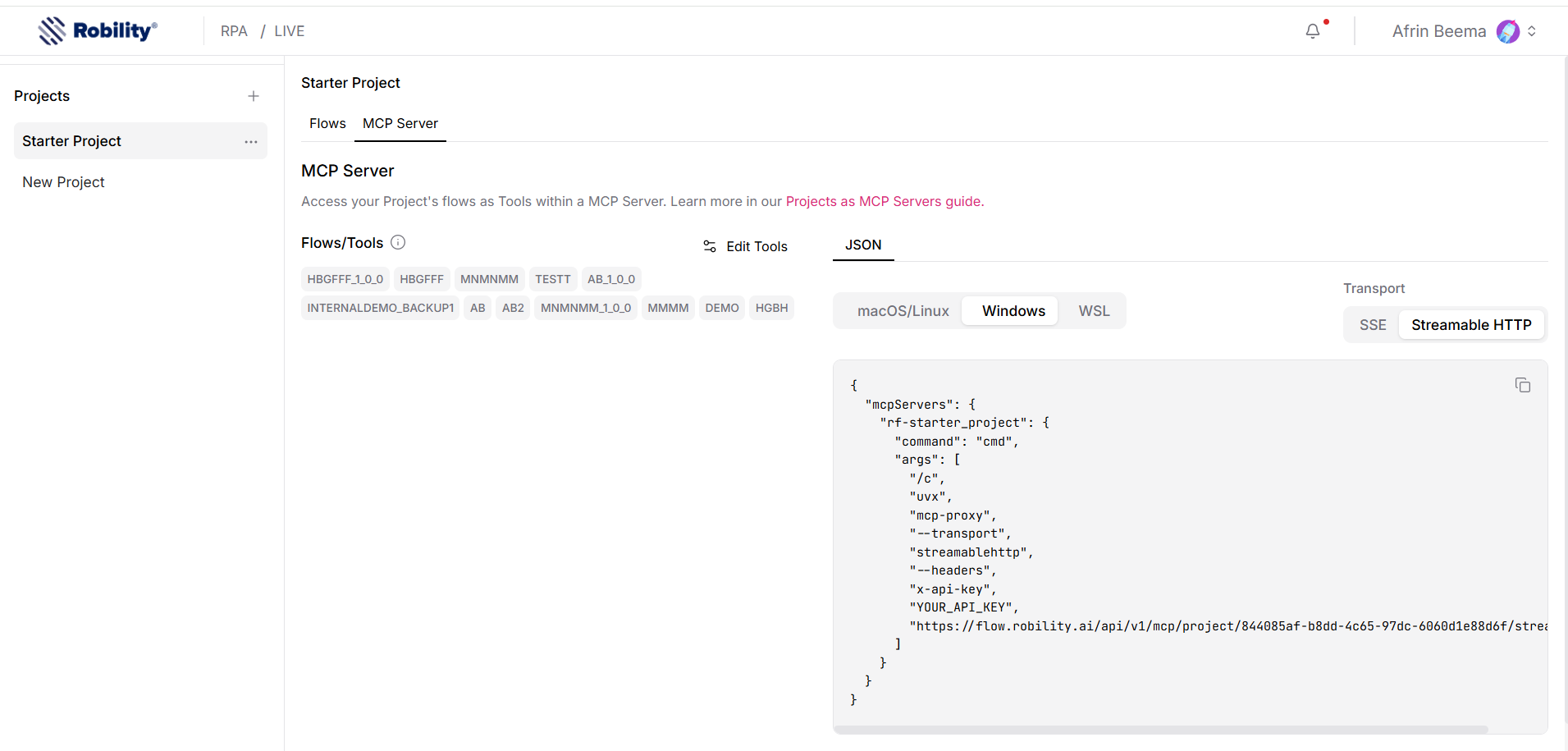
The Flows/Tools section lists the flows that are currently being served as tools on this MCP server.
2. To toggle exposed flows, click Edit Tools, and then select the flows that you want exposed as tools. To prevent a flow from being used as a tool, clear the checkbox in the first column.
3. Close the MCP Server Tools dialog to save your changes.
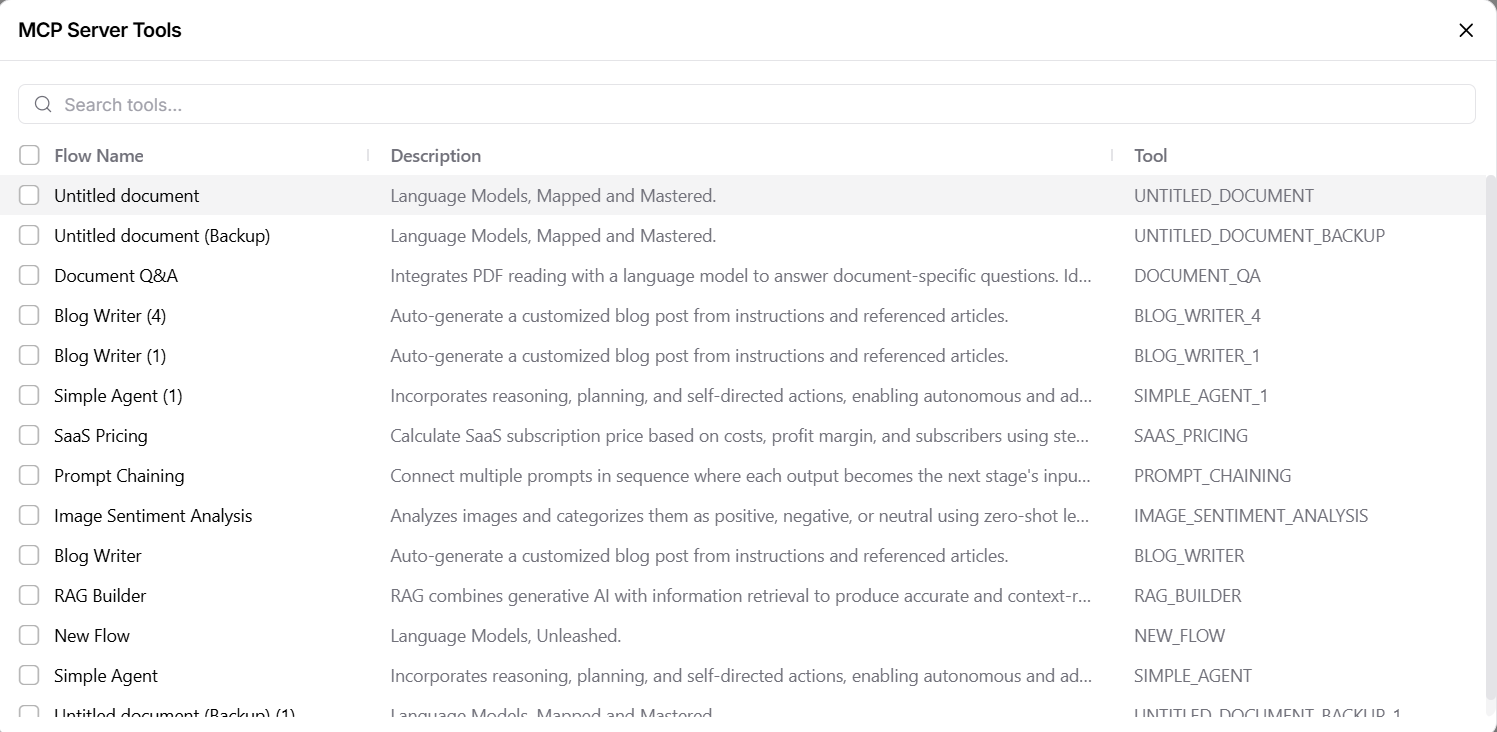
Edit flow tool names and descriptions
Tool names and descriptions help MCP clients determine which actions your flows provide and when to use those actions. It is recommended to provide clear, descriptive names and descriptions for all tools that you serve to MCP clients.
To edit the names and descriptions of flow tools on a Robility flow MCP server, do the following:
1. Click the MCP Server tab on the Projects page, or, when editing a flow, click Share, and then select MCP Server.
2. Click Edit Tools.
3. Click the Description or Tool that you want to edit:
a. Tool name: Enter a name that clearly explains what the flow does when used as a tool by an agent.
b. Tool description: Enter a description that completely and accurately explains the specific actions the flow performs.
4. Close the MCP Server Tools dialog to save your changes.
Importance of tool names and descriptions
MCP clients use tool names and descriptions to determine which actions to use when generating responses.
Because MCP clients treat your Robility flow project as a single MCP server with all enabled flows listed as tools, unclear names and descriptions can cause the agent to select tools incorrectly or inconsistently.
For example, a flow’s default tool name might be a flow ID such as: adbbf8c7-0a34-493b-90ea-5e8b42f78b66. This provides no meaningful information about the flow’s purpose.
To give better context, ensure your flows are clearly named and described when configuring your Robility flow project’s MCP server.
Think of these names and descriptions like function names and code comments. Use clear, specific language to describe the problems your flows solve.
Connect clients to your Robility flow MCP server
Robility flow provides automatic installation and code snippets to help you deploy your Robility flow MCP servers to your local MCP clients.
The JSON option allows you to connect a Robility Flow MCP server to any local or remote MCP client. You can modify this process for any MCP-compatible client.
1. Install any MCP-compatible client.
These steps use Cursor as an example, but the process is generally the same for all clients, with slight differences in client-specific details like file names.
2. In your client, add a new MCP server using the client’s UI or configuration file.
For example, in Cursor, go to Cursor Settings, select MCP, and then click Add New Global MCP Server to open Cursor’s global mcp.json configuration file.
a. In Robility Flow, on the workflow canvas menu page, click the MCP Server tab.
b. Click the JSON tab, copy the code snippet for your operating system, and then paste it into your client’s MCP configuration file. For example:
{
  "mcpServers": {
    "PROJECT_NAME": {
      "command": "uvx",
      "args": [
        "mcp-proxy",
        "--transport",
        "streamablehttp",
        "http://ROBILITY_SERVER_ADDRESS/api/v1/mcp/project/PROJECT_ID/streamable"
      ]
    }
  }
}
The MCP Server tab automatically populates the ROBILITYFLOW_SERVER_ADDRESS and PROJECT_ID values.
To include other environment variables with your MCP server command, add an env object with key-value pairs of environment variables. For example:
{
  "mcpServers": {
    "PROJECT_NAME": {
      "command": "uvx",
      "args": [
        "mcp-proxy",
        "--transport",
        "streamablehttp",
        "http://ROBILITYFLOW_SERVER_ADDRESS/api/v1/mcp/project/PROJECT_ID/streamable"
      ],
      "env": {
        "KEY": "VALUE"
      }
    }
  }
}
Don’t add API keys in the env object, as these variables are specifically for the mcp-proxy process. Instead, add API keys under args. For example, see MCP server authentication.
1. Save and close your client’s MCP configuration file.
2. Confirm that your Robility Flow MCP server is on the client’s list of MCP servers. If necessary, restart your client to apply the modified configuration file.
Auto Install
Info
The auto install option is available only for specific MCP clients. Auto install requires the client to be installed locally so Robility Flow can write to the client’s configuration file. If your client isn’t supported, it is installed remotely, or you need to pass on additional environment variables, use the JSON option.
1. Install Cursor, Claude, or Windsurf on the same computer where your Robility Flow server is running.
2. In Robility Flow, on the Projects page, click the MCP Server tab.
3. On the Auto install tab, find your MCP client provider, and then click Add.
Your Robility Flow project’s MCP server is automatically added to the configuration file for your local Cursor, Claude, or Windsurf client. For example, with Cursor, the server configuration is added to the mcp.json configuration file.
Robility Flow attempts to add this configuration even if the selected client isn’t installed. To verify the installation, check the available MCP servers in your client.
MCP server authentication and environment variables
You must provide a Robility flow API key in your MCP client configuration if your Robility flow server has authentication enabled.
When this is the case, the code template in your project’s MCP Server tab automatically includes the –header and x-api-key arguments:
{
  "mcpServers": {
    "PROJECT_NAME": {
      "command": "uvx",
      "args": [
        "mcp-proxy",
        "--headers",
        "x-api-key",
        "YOUR_API_KEY",
        "http://ROBILITYFLOW_SERVER_ADDRESS/api/v1/mcp/project/PROJECT_ID/sse"
      ]
    }
  }
}
Click Generate API key to automatically insert a new Robility flow API key into the code template. Alternatively, you can replace YOUR_API_KEY with an existing Robility flow API key.
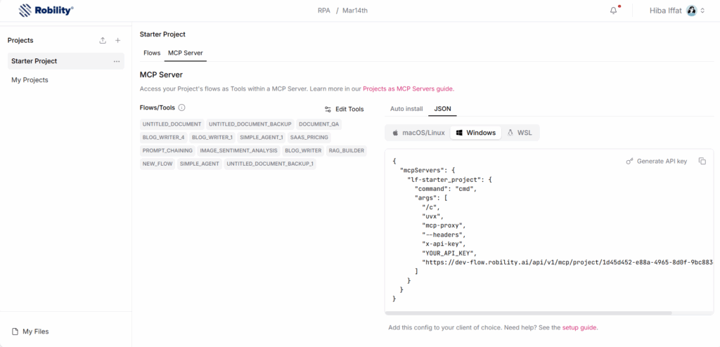
To include other environment variables with your MCP server command, use the env object with key-value pairs of environment variables:
{
  "mcpServers": {
    "PROJECT_NAME": {
      "command": "uvx",
      "args": [
        "mcp-proSxy",
        "http://ROBILITYFLOW_SERVER_ADDRESS/api/v1/mcp/project/PROJECT_ID/sse"
      ],
      "env": {
        "KEY": "VALUE"
      }
    }
  }
}
Deploy your MCP server externally
To deploy your MCP server externally with ngrok, see Deploy a public Robility flowserver.
Use MCP Inspector to test and debug flows
MCP Inspector is a common tool for testing and debugging MCP servers. You can use MCP Inspector to monitor your flows and get insights into how they are being consumed by the MCP server:
1. Install MCP Inspector: npx @modelcontextprotocol/inspector. For more information about configuring MCP Inspector, including specifying a proxy port, see the MCP Inspector GitHub project.
2. Open a web browser and navigate to the MCP Inspector UI. The default address is http://localhost:6274.
3. In the MCP Inspector UI, enter the connection details for your Robility flow project’s MCP server:
a. Transport Type: Select SSE.
b. URL: Enter Robility flowMCP server’s sse endpoint.
For example: http://localhost:7860/api/v1/mcp/project/d359cbd4-6fa2-4002-9d53-fa05c645319c/sse
If you’ve configured authentication for your MCP server, fill out the following additional fields:
a. Transport Type: Select STDIO.
b. Command: uvx
c. Arguments: Enter the following list of arguments, separated by spaces. Replace the values for YOUR_API_KEY, ROBILITYFLOW_SERVER_ADDRESS, and PROJECT_ID with the values from your Robility flow MCP server. For example: mcp-proxy – headers x-api-key YOUR_API_KEY http://ROBILITYFLOW_SERVER_ADDRESS/api/v1/mcp/project/PROJECT_ID/sse
4. Click Connect. If the connection was successful, you should see your project’s flows in the Tools tab. From this tab, you can monitor how your flows are registered as tools by MCP, as well as test the tools with custom input values.
5. To quit MCP Inspector, press Control+C in the same terminal window where you start it.
Troubleshooting MCP server
If Claude for Desktop isn’t using your server’s tools correctly, you may need to explicitly define the path to your local uvx or npx executable file in the claude_desktop_config.json configuration file.
1. To find your UVX path, run which uvx. To find your NPX path, run which npx.
2. Copy the path and then replace PATH_TO_UVX or PATH_TO_NPX in your claude_desktop_config.json file.
a. uvx
b. npx
{
  "mcpServers": {
    "PROJECT_NAME": {
      "command": "PATH_TO_UVX",
      "args": [
        "mcp-proxy",
        "http://ROBILITYFLOW_SERVER_ADDRESS/api/v1/mcp/project/PROJECT_ID/sse"
      ]
    }
  }
}
