
Playground
The Playground is a built-in interactive testing environment that lets you execute, inspect, and iterate on your workflow directly from the canvas, before deploying it to production. It provides real-time feedback on agent behavior, model responses, and data flow across components, making it the primary surface for development-time validation and debugging.
Think of the Playground as a safe sandbox: you can send inputs, observe outputs, manipulate session memory, and refine logic without any risk to live deployments.
Prerequisites
Before opening the Playground, ensure your workflow meets the following requirements:
1. Chat Input /Chat Output component Must be present and connected in the flow.
2. All components connected No orphaned nodes; the execution path must be complete.
Note: Both the Chat Input and Chat Output components must be present for the Playground to function fully.
a.If only the Chat Output is added, the Playground will not display an option to enter and send a message, only the Run option will be available.
b. If only the Chat Input is added, the query sent to the agent will be visible, but the response will not be displayed.
Accessing the Playground
To open the Playground:
1. Build or load your workflow on the canvas.
2. Click the Playground button in the top-right corner of the canvas.
3. The Playground panel will open alongside your canvas.
Key Capabilities
1. Live workflow execution – Enter text or data and run it through your workflow immediately.
2. Dynamic output preview – View model or agent responses as they are generated.
3. Conversation tracking – Inspect system instructions, user messages, and responses to analyze workflow logic.
4. Session memory control – Modify or clear messages and session history to simulate varied context scenarios.
a. Tool invocation visibility – When your workflow includes an Agent component, the Playground displays each tool the agent called, the inputs passed, and the output returned, giving you full transparency into agent decision-making.
b. Prompt iteration – Modify system prompts, model parameters, and component settings on the fly and immediately re-run to observe the impact.
c. Intermediate output inspection – Trace data as it moves through each component to isolate where unexpected behavior originates.
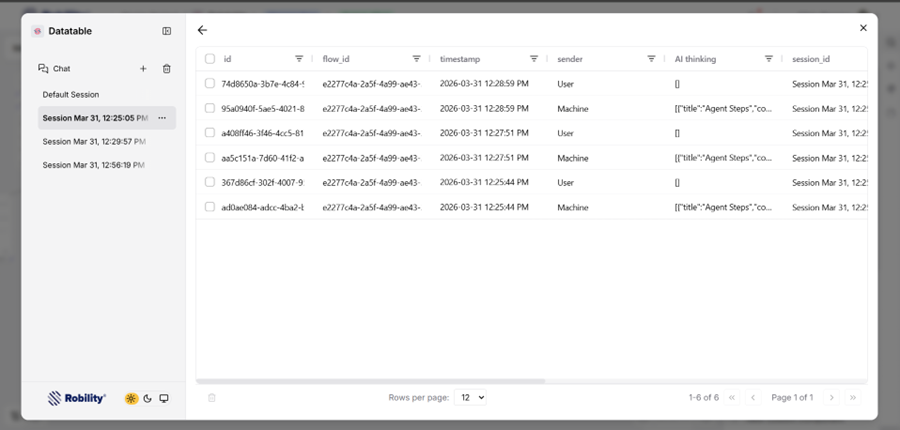
d. Session history logs – Access structured logs per session, including timestamps, sender identity, and full message content, for detailed post-run analysis.
e. Memory manipulation – Delete or modify past messages to test how the agent responds to altered context, useful for evaluating memory sensitivity and fallback behavior.
Testing a Workflow
To test a workflow in the Playground, follow the steps below:
1. Open your workflow: Create a new flow or load an existing one in the canvas. Make sure all components are properly connected before proceeding.
2. Launch the Playground: Click the Playground button in the top-right corner of the canvas to switch to the interactive testing environment.
3. Provide an input: Type your text or query into the Chat Input component. This will serve as the starting point for workflow execution.
4. Execute the workflow: Submit the input to trigger processing. The workflow will run through all linked components in sequence.
5. Review the results: Once execution is complete, the output and any intermediate responses will appear within the Playground interface for you to review and evaluate.
Exploring Results
Once the workflow runs, the Playground provides several controls to help you inspect and evaluate its behavior:
a. history: Review all messages exchanged during the session to trace the reasoning path and understand how the workflow arrived at its outputc..
b. Detailed logs: Access a full record of each message, including timestamps, sender details, and content, for complete traceability.
c. Adjust memory: Edit or delete individual messages or the entire session history to observe how changes in context affect the workflow’s output.
d. Start new sessions: Create a separate session to test alternative scenarios or inputs without affecting or overwriting existing session data.
e. Remove sessions: Permanently delete a session to clear its memory and start fresh with a clean state.
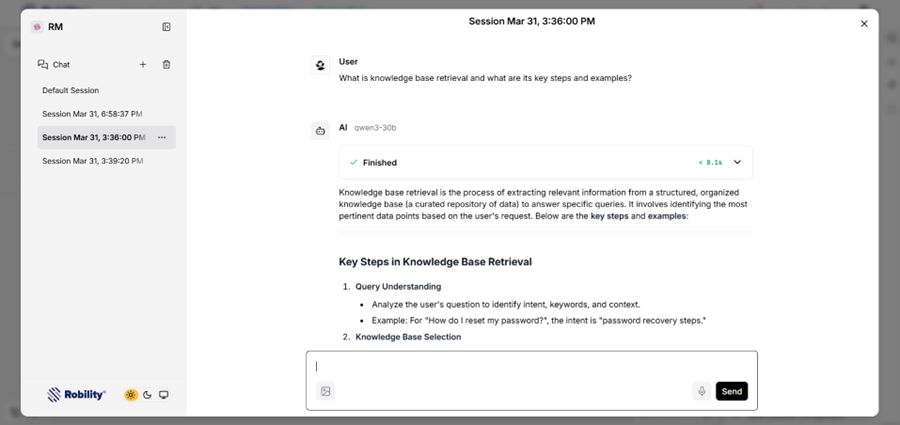
Viewing Chat History
To view message logs for a Playground session:
1. In the Playground sidebar, locate the chat session you want to examine.
2. Click Options next to the session.
3. Select Message Logs to review timestamps, content, and sender details.
To rename a session, click the (…) icon next to the session name and select Rename to update the name of that session.
Best Practices
1. Include chat components: Add Chat Input and Chat Output to your workflow for interactive validation.
2. Test incrementally: Run portions of the workflow in isolation to identify and resolve issues faster.
3. Iterate on prompts: Refine system instructions, prompts, and model settings based on observed output behavior.
Important Notes
a. The Playground is intended for development, experimentation, and debugging, not for production deployment.
b. If the workflow contains an Agent component, the Playground displays the tools invoked by the agent and the output from each tool, providing visibility into how and why the agent arrived at its final response.
