
Robility KB Ingestion
The Robility KB Ingestion component creates or updates a centralized knowledge base for your structured data and documents. It serves as a robust repository for standard workflow queries while automatically handling text chunking and vector embedding behind the scenes.
This ensures your ingested data such as product documentation, FAQs, and policy files are instantly optimized for fast semantic lookup, allowing both traditional automations and AI agents to ground their responses in accurate content.
Prerequisites
Before using this component, ensure the following are in place:
LLM and Embedding Configuration (Mandatory)
To enable KB ingestion and retrieval functionality, you must configure the required Azure LLM and Embedding credentials.This step is mandatory. Without valid LLM and embedding configuration, the KB ingestion and retrieval components will not function.
Steps:
The following steps are performed only by Tenant Admins.
1. Log in to the Robility Manager.
2. Navigate to the Settings menu.
3. Open the LLM Configuration section.
4. Provide the following details:
a. Azure OpenAI / LLM credentials
b. Embedding model configuration
5. Save the configuration.
Recommended Workflow
Step 1 — Read File component
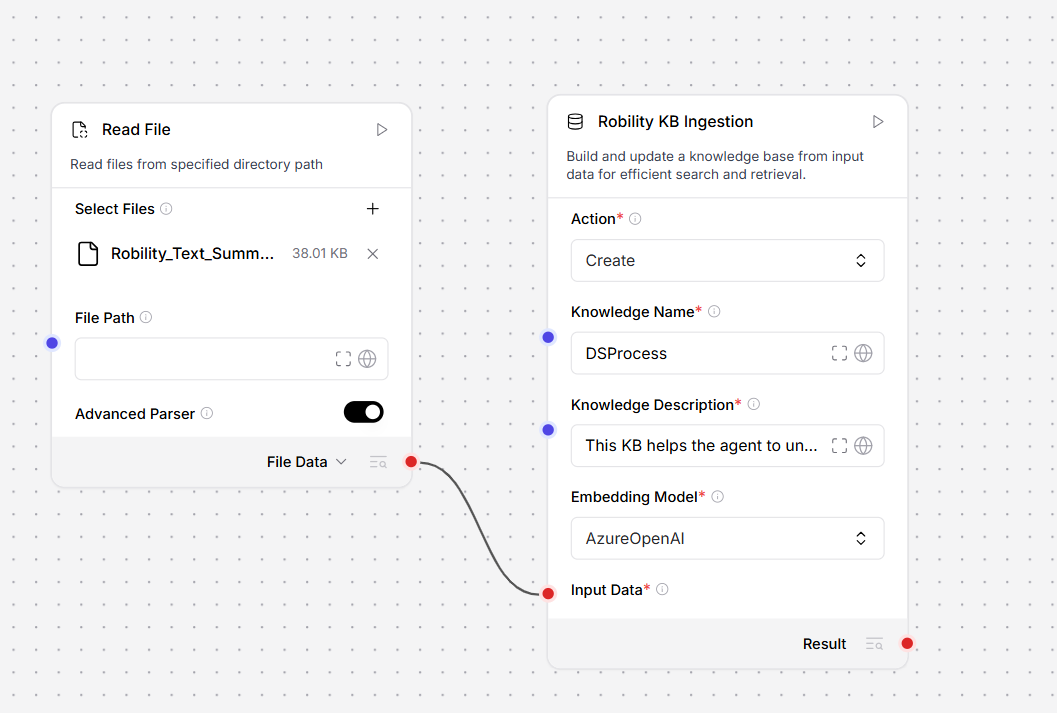
Add a Read File component to your workflow and configure it to point at the source file you want to ingest (for example, a PDF, DOCX, TXT, or CSV). The Read File component reads the raw content and outputs it as a structured Data or DataFrame object.
Step 2 — KB Ingestion component
Connect the Data or DataFrame output port of the Read File component to the Input Data field of the KB Ingestion component. Then configure the remaining parameters: set Action to Create (for a new knowledge base) or Update (for an existing one), enter a Knowledge Name, select the Embedding Model, and adjust chunking settings if needed.
When the workflow runs, KB Ingestion receives the structured records, splits them into chunks, generates vector embeddings, and stores the result in the knowledge base ready for downstream retrieval.
Parameters
| Parameter | Description |
|---|---|
| Action |
Determines whether to create a new knowledge base or update an existing one.
|
| Knowledge Name |
A unique identifier for the knowledge base. Used to reference it in downstream components. Must start with a letter. Allowed: letters, numbers, hyphens (-), underscores (_). Length: 3–60 characters. Accepts a literal string or a global variable. |
| Knowledge Description |
A brief description of what the knowledge base contains. Helps agents and collaborators understand its purpose. Length: 10–500 characters. |
| Embedding Model |
The model used to convert your data into vector embeddings for semantic search. Currently supports Azure OpenAI. Your Azure OpenAI resource and embedding deployment must be configured in the environment before running the workflow. |
| Input Data |
The data to ingest. Connect the output of an upstream Data or DataFrame component. Each record must include two fields: text (the content to embed) and file_name (a source identifier). Supports single-file and multi-file inputs. |
| Chunk Size |
Controls how input text is split into segments before embedding. Smaller values improve precision for targeted lookups. Larger values preserve more context per chunk. Default: 1000. |
| Chunk Overlap |
The number of characters shared between consecutive chunks. Prevents context from being lost at chunk boundaries. Higher overlap reduces information loss at boundaries but increases the total number of chunks stored. Default: 200. |
| Timeout (Seconds) |
Maximum time the component waits for the ingestion process to complete before raising a timeout error. Increase this value when ingesting large files or batches. Default: 30 seconds. |
| Retry Count |
Number of times the component automatically retries if ingestion fails. Default: 2. |
| Delay Between Retries | Time in milliseconds to wait between retry attempts. Provides a back-off window before reattempting. |
| Delay Before Execution | Time in milliseconds to pause before the component begins processing. Useful for rate-limiting or sequencing within a workflow. |
| Delay After Execution | Time in milliseconds to pause after the component finishes. Allows downstream components time to prepare. |
| Continue on Error |
Defines the workflow behaviour when this component encounters an unrecoverable error.
|
Output
| Field | Description |
|---|---|
| knowledge_base | Name and identifier of the created or updated knowledge base. |
| records_processed | Total number of records successfully embedded and stored. |
| embedding_status | Indicates whether all records were embedded without error. |
| storage_status | Confirms whether the embedded vectors were persisted to the knowledge store. |
