Traces
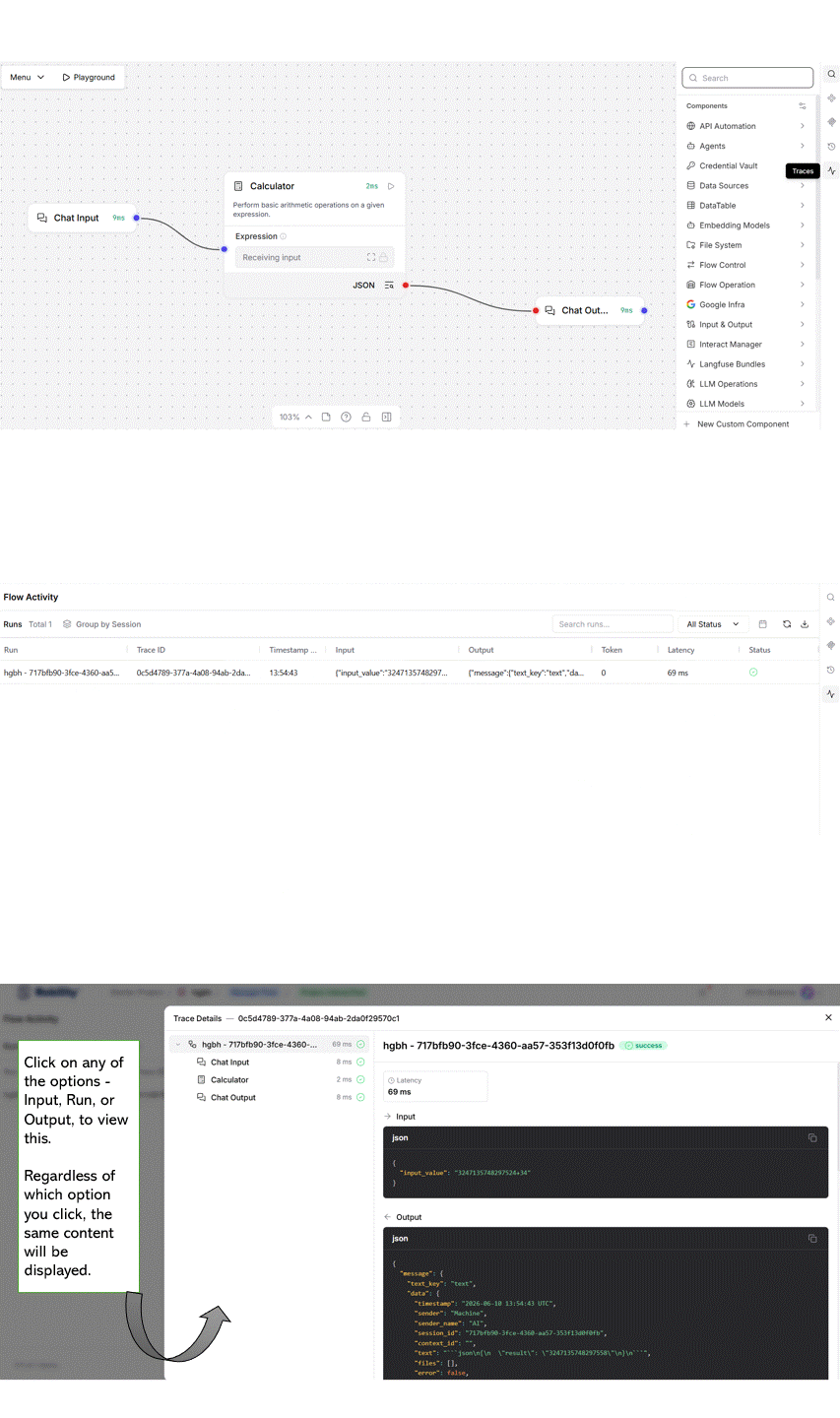
The Traces feature provides comprehensive execution insights for flows and their components. It enables users to troubleshoot issues, analyze execution latency, and monitor token consumption without relying on external monitoring tools. The feature is accessible from the right-side panel.
Trace information is stored in the Robility Flow database within the Trace and Span tables and can be viewed through the Flow Activity and Trace Details pages for in-depth analysis and debugging.
What Traces Capture
When a flow runs, Robility Flow automatically records a trace for that execution. A trace is a structured record of everything that occurs during the flow, from initiation to completion or failure.
Each trace includes two levels of detail:
1. Flow-level trace: A single trace is created for each flow run, representing the entire execution. It captures total runtime, start and end times, and the final status (success or failure). Flow-level traces provide a high-level view of flow performance and help identify runs that failed or took longer than expected.
2. Component spans: Within each trace, a span is recorded for every component executed during the flow. Each span represents the lifecycle of a component, including its inputs, outputs, execution time, and status. Component spans help you identify where issues or delays occur within the flow.
Span Fields
Each span contains the following fields:
1. Name: Represents the component name along with its category (for example, Scrapy Web Scraper).
2. Start time, end time, and latency: Capture when the component starts and finishes, along with the total duration in milliseconds. Latency helps identify slow components and performance bottlenecks.
3. Inputs and outputs: Show the data passed into the component and the results it returns. This helps verify data flow and identify processing issues.
4. Error details: Display the error message and related context if a component fails, enabling faster troubleshooting.
5. Attributes: Provide additional metadata such as token usage (prompt, completion, total), model name, model provider, and other execution details. This is useful for monitoring usage and cost.
6. Status indicators: Indicate execution status using icons. A green tick (✓) represents success, and a red cross (✗) represents failure, providing a quick visual summary.
Viewing Traces
1. Click Traces in the left navigation to open the Flow Activity page, which displays all flow runs as trace entries with details such as flow name, status, session ID, start time, and duration.
2. Review the list of flow runs. Each row represents a complete execution of a flow, including all spans generated during the run.
a. Use the Status filter to narrow results by selecting All Status, Success, or Error.
b. Use the date range filters to select a start date and end date to view results for a specific period.
c. Click Refresh to reload the Flow Activity list if the expected results are not displayed.
3. Click any flow run row to open the Trace Details pane and view detailed execution information.
a. The pane displays a flow-level span at the top, including overall start time, end time, duration, and final status.
b. Component spans are listed below in execution order and can be expanded to view inputs, outputs, timing details, token usage, and error messages.
c. Use the component spans to trace data step by step and identify where execution failed or behaved unexpectedly.
4. Click Download to export the selected trace as a JSON file. The file includes all spans and metadata for offline analysis or sharing.