
Flow
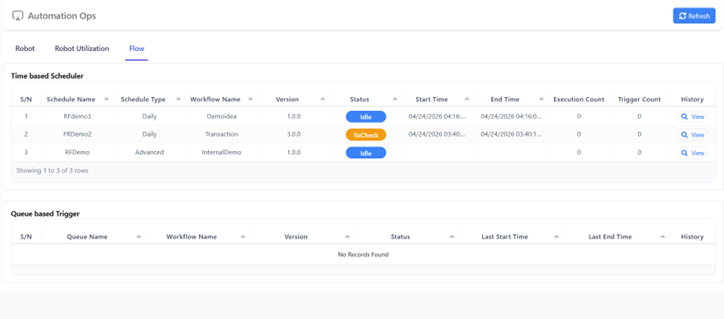
The Flow page acts as a central control panel for all Robility Flow schedulers within a project. It provides a unified view where users can monitor, manage, and analyze workflow executions that are triggered either by time or by queue events.
1. Time-Based Scheduler
The Time-Based Scheduler is used to execute workflows at a predefined time or on a recurring schedule. It supports automation for workflows that need to run daily, weekly, monthly, or at fixed intervals.
Scheduler Details
a. Scheduler Name: Displays the name assigned to the scheduler.
b. Scheduler Type: Indicates the type of scheduler (e.g., time-based).
c. Workflow Name: Shows the workflow linked to the scheduler.
d. Version: Displays the version of the workflow being executed.
e. Status: Indicates the current state of the scheduler (e.g., Idle, To Check, Running).
e. Start Time: Shows when the scheduler is set to begin execution.
f. End Time: Shows when the scheduler is set to stop execution.
g. Execution Count: Displays the total number of workflow executions.
h. Trigger Count: Shows how many times the scheduler has triggered the workflow.
i. History: Provides a record of past executions, including status and runtime details.
j. Click View to see the overall execution history.
k. Each row can be expanded via View to access detailed execution logs.
2. Queue-Based Scheduler
The Queue-Based Scheduler triggers workflows based on items available in a selected queue. It enables event-driven automation, making it suitable for processes that depend on incoming transactions or queued data.
Scheduler Details
a. Queue Name: Displays the name of the queue linked to the scheduler.
b. Workflow Name: Shows the workflow executed for the queue.
c. Version: Indicates the version of the workflow being used.
d. Status: Shows the current state of the scheduler.
e. Last Start Time: Displays the most recent workflow start time.
f. Last End Time: Displays the most recent workflow completion time.
g. History: Provides a record of previous executions, including status and timing details.
h. Click View to explore detailed execution information.
