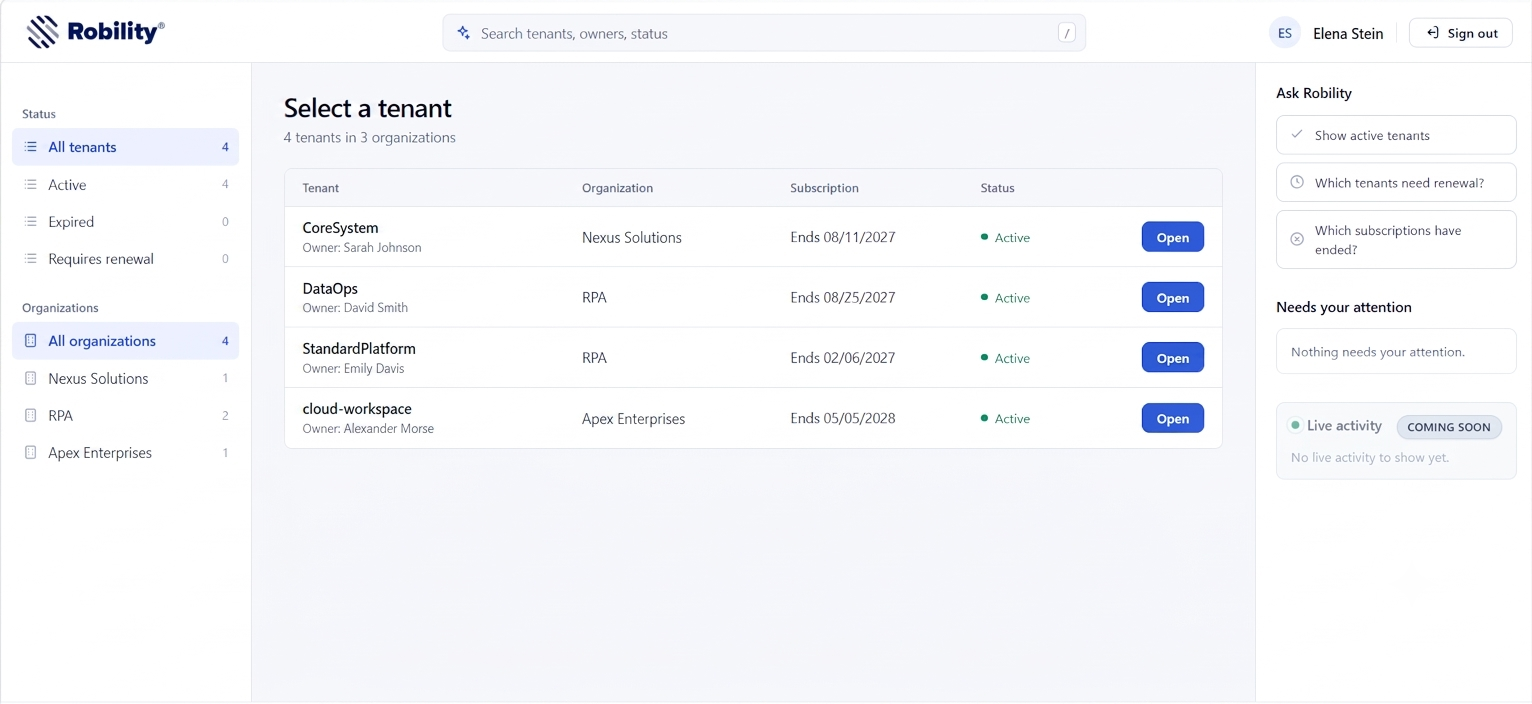
Select a Tenant
The Select a tenant page provides access to tenant workspaces in Robility. This supports searching for tenants, filtering by status or organization, reviewing workspace details, and using quick prompts or side cards to stay oriented.
Top Header
a. Robility Logo: Navigates to the official Robility Documentation Portal.
b. Search Bar: Looks up tenants, owners, or statuses.
c. Account & Sign Out: Displays user initials or avatar, name and provides a Sign out option to end the session.
Left Navigation Filters
The left sidebar narrows down the tenant list without changing underlying workspace data:
Status: Filters tenants by lifecycle state such as All tenants, Active, Expired, or Requires renewal.
Organizations: Filters tenants by parent organization you are currently in
Tenant List
The central table displays matching tenants and key workspace details to select an environment:
a. Tenant: Shows the tenant name and assigned owner.
b. Organization: Shows the parent organization the tenant belongs to.
c. Subscription: Shows when the subscription ends.
d. Status: Shows whether the tenant is active or in another state.
e. Open: Opens the selected tenant workspace.
Right Panel: Assistant & Alerts
1. Ask Robility: Offers quick prompts to check tenant status and subscription timelines:
i. Show active tenants: Displays active tenants along with key details such as tenant name, owner, organization, and subscription end date.
ii. Which tenants need renewal?: Displays tenants that require renewal or are nearing their subscription end date to support renewal planning.
iii. Which subscriptions have ended?: Lists tenants with expired subscriptions to identify inactive or lapsed workspaces.
2. Needs your attention (Coming soon): Highlights items or alerts that require follow-up when action is needed.
3. Live activity (Coming soon): Reserved for upcoming real-time activity updates.