
Troubleshooting
Robility Flow AI can make mistakes.
Robility Flow is a visual builder for AI workflows. You drag components onto a canvas, connect them, and test the flow in the Playground. The responses you see come from the LLM or model provider that you configure in your flow.
You will see this notice in the Playground:
Robility Flow AI can make mistakes. Please double-check responses.
The notice does not mean the output is usually wrong. It means the output was generated by an AI model and has not been checked by a person. Its quality depends on the model you chose, its settings, and how your flow is built. Review the output before you rely on it or act on it.
Why AI responses can be wrong
Robility Flow sends your input, prompts and context to the model you connected, then shows what that model returns. The model predicts likely text. It does not look up verified facts. Common causes of errors:
1. The model can invent facts, names, field values, quotes or references and state them confidently. The industry term for this is “hallucination”.
2. Model choice and settings. Models differ in accuracy, reasoning ability and language support. Settings such as temperature and maximum output length also affect results. A higher temperature gives more varied output, which is more likely to drift from the facts.
3. Outdated or missing knowledge. A model only knows what was in its training data, up to a cut-off date. Unless your flow gives it current data (through a connector, a knowledge base or a search component), it may not know about recent events or your organisation’s latest policies.
4. Flow design. The model can only work with what the flow sends it. A wrong prompt-template variable, truncated context, a retrieval step that returns the wrong content, or a poor-quality scan all lead to poor answers.
5. Unclear prompts. Vague instructions or missing context make wrong answers more likely.
6. When a question has more than one valid answer, the model may give only one, or present unequal positions as equal.
7. Calculations and counts. LLMs are not calculators. Totals, dates, percentages and counts can be wrong unless the flow uses a code or calculator component.
8. Language coverage. Many models are most accurate in English. Accuracy can drop for other languages, mixed-language content and specialist terms.
9. Variation between runs. The same input can produce different output each time. One good result does not guarantee the next.
How your flow shapes the response
On every run, the model sees only what your flow sends it: the system prompt, the prompt template, the chat history, any retrieved content, and the user’s message. It has no other memory of you or your data. If any of these inputs is wrong, missing or cut off, the answer will be too.
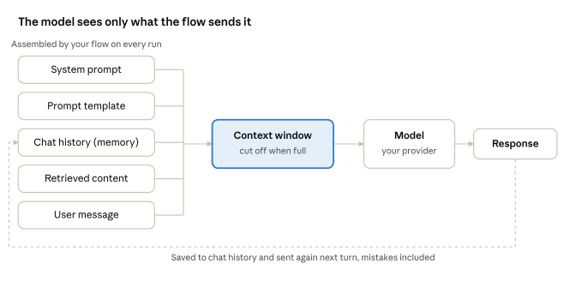
What the model receives on each run · 5 inputs, 1 loop
Each response is saved to the chat history, so an early mistake can be sent back to the model on every later turn.
Prompts
a. System prompt. The instructions on the agent or model component set the model’s role, rules and tone. Vague or contradictory instructions lead to inconsistent answers.
b. Prompt templates. Variables such as {context} and {question} are filled when the flow runs. If a variable is empty or connected to the wrong component, the model gets incomplete input and fills the gap by guessing.
c. Grounding instructions. Telling the model to answer only from the provided context, and to say “I don’t know” when the information is missing, reduces made-up answers.
Chat history and memory
a. How the model “remembers”. The model does not remember earlier messages by itself. A memory component, or the agent’s built-in memory, retrieves past messages and sends them with each new input.
b. Mistakes carry forward. If the model gave a wrong answer earlier in the conversation, it may keep building on it. Starting a new session in the Playground is often the quickest fix.
c. How many messages are sent. Too few and the model loses track of the conversation. Too many and older, irrelevant messages crowd out the current question.
d. Session IDs. History is grouped by session ID. If a session ID is shared or reused by mistake, one user’s conversation can affect another user’s answers.
e. No long-term learning. Corrections you make in a chat are not saved into the model. They only apply while they stay in the history the flow sends.
Context window
Each model can only read a limited amount of text per run: system prompt, history, retrieved content and the question combined. When the limit is reached, content is cut off, often the oldest history or the end of a long document, and the model answers without it. Larger documents may need to be split, summarised or retrieved in smaller parts.
Retrieved content
When a flow uses a knowledge base, vector store or search component, the model answers from what that step returns. If it returns the wrong passages, outdated documents or nothing relevant, the model can still answer confidently. Check the retrieved content, not only the final answer.
Where to look most carefully
| Where in Robility Flow | What Can Go Wrong | What to Check |
|---|---|---|
| Playground and chat responses | Made-up facts, wrong names, or confident but incorrect explanations. | Compare key facts with a trusted source. |
| Citations and references | Links, document names, or quotes that do not exist or do not support the claim. | Open the cited source and read the relevant section. |
| Document extraction (OCR, Vision Extractor, LLM extraction) | Misread characters, swapped fields, missing line items, or invented values for blank fields. | Spot-check extracted fields against the original document, especially amounts, dates, and IDs. |
| Numbers and calculations | Incorrect totals, percentages, or date differences. | Recalculate the values or use a code or calculator step in the flow. |
| Model-generated prompts, code, or content used in a flow | Incorrect component settings, broken logic, or insecure or inefficient code. | Test in a non-production environment before deployment. |
| Agent actions (creating tickets, sending messages, writing to databases) | Actions performed based on incorrect assumptions or applied to the wrong record. | Add a human approval step for actions that are difficult to undo. |
| Summaries and reviews | Missing important points or including information that the source does not contain. | Review the original source before making decisions based on the summary. |
How to double-check responses
1. Don’t treat it as your only source. Use AI output as a starting point, then confirm anything important with a system of record, an official document or a subject-matter expert.
2. Check the sources. When a response cites a document, knowledge-base article or web page, open it. The original often has context that a summary leaves out.
3. Match the effort to the stakes. A draft email needs a quick read. Financial figures, legal or compliance wording, customer-facing content and production changes need a careful review.
4. Verify the specifics. Names, amounts, dates, IDs, account numbers and quotes are where errors do the most damage. Check each one.
5. Test before you deploy. Run your flow against sample data in the Playground or a test environment before you deploy it.
6. Watch for overconfidence. A fluent, detailed answer is not proof of accuracy. Be most cautious when the answer is exactly what you hoped to hear.
7. Ask it to show its work. In your prompt, ask the model which part of the input supports its answer, then confirm that part yourself.
How to reduce mistakes in your flows
When you write prompts
1. Be specific about the task, the audience and the output format. Give an example of a good output.
2. Supply the facts the model needs (documents, records, policies) rather than relying on what it already knows.
3. Tell the model to answer only from the supplied context, and to say “I don’t know” or leave a field empty when the information is missing.
4. Ask for structured output (for example JSON with fixed field names) so results can be validated automatically.
When you design flows
1. Ground answers in current data with knowledge-base, retrieval or connector components.
2. Use code or calculator components for arithmetic, dates and counts, not the LLM.
3. Validate outputs: check required fields, formats, value ranges and totals before passing them on.
4. Add a human-in-the-loop approval before high-impact actions such as payments, external emails, record updates or deletions.
5. Log inputs and outputs so errors can be traced and fixed.
6. Re-test flows when you change the model, the prompt or the input documents.
Agents and tools
An agent component lets the model decide which tools to call, in what order and with which inputs. That flexibility brings its own errors:
1. Wrong tool or wrong inputs. The agent may choose an unsuitable tool, or pass it the wrong ID, date or search term. Clear tool names and descriptions help the model choose correctly.
2. Misreading tool output. The agent can misread or over-summarise what a tool returns, then act on that misreading.
3. Loops and extra steps. An agent may repeat calls or take more steps than needed. Set a maximum number of iterations.
4. Real-world side effects. Tools that create tickets, send messages or update records act on the agent’s decision. Use read-only tools where you can, and add a human approval step before actions that are hard to undo.
Check the agent’s step-by-step output in the Playground to see which tools it called and what they returned.
Debugging a wrong answer
When a flow gives a wrong answer, find out what the model actually received before you change the model. Work through these in order:
1. Check the inputs. Inspect each component’s input and output to see the exact text that reached the model component.
2. Check the prompt. Are all template variables filled? Are the instructions clear and free of contradictions?
3. Check the history. Is an earlier wrong answer still in the conversation? Try again in a new session.
4. Check retrieval. Did the knowledge base or search step return the right, current content?
5. Check the context size. Is a long document or history being cut off?
6. Check the tools. For agents, did it call the right tool with the right inputs, and read the result correctly.
7. Check the model and settings. If the inputs are all correct, try lowering the temperature or switching to a more capable model.
If the inputs were correct and the answer was still wrong, the problem is with the model. If an input was wrong, fix the flow.
Data, privacy and bias
1. What is sent to the provider. Prompts, chat history, retrieved documents and tool results are sent to the model provider you configured. How that data is handled depends on the provider’s terms, not on Robility Flow.
2. Sensitive data. Don’t send personal, financial or confidential data to a model unless your organisation has approved that provider for it. Mask or remove sensitive fields where you can.
3. Stored history. Chat history saved by memory components may hold sensitive content. Clear sessions you no longer need.
4. Models can reflect bias from their training data. Take extra care when output affects decisions about people, such as hiring, customer eligibility or performance reviews.
Reporting incorrect responses
First, decide where the problem is. If a component, connector or the Playground isn’t working as expected, report it to us. If the model’s answer itself is wrong, try a clearer prompt, more context, a different model or lower temperature. Persistent quality issues with a particular model can also be reported to that model’s provider.
Include:
a. The flow name and, if you can, the run or session ID
b. The model and provider used, and key settings such as temperature
c. The input you gave, or a description of it (remove sensitive data)
d. The response you received and what the correct response should have been
e. The date and time it happened
Send reports to the Robility support team.
If a wrong response has already caused an action, such as a sent message or an updated record, report it immediately and correct the affected record.
Frequently asked questions
1. Which model produces the responses? The model you configure in your flow’s model component. Robility Flow does not have a built-in model. Changing the model or its settings can change the quality of the responses.
2. Why did it answer confidently when it was wrong? LLMs produce fluent text whether or not the underlying facts are correct. Confidence in the wording is not a sign of accuracy.
3. Why do I get a different answer when I run the same input again? Model output varies between runs. For repeatable results, use structured output, clear instructions and validation steps in your flow
4. Can a flow check the model’s work? Partly. You can add validation components, or a second model step that reviews the first. That reduces errors but does not remove them. A person should still check important output.
5. Who is responsible for the final output? You are. Review and approve AI output before you use it in decisions, send it to customers or act on it in production systems.
