
Deep Agent Execution Flow
Deep Agent interprets user requests, plans and performs the required actions, and produces results using the capabilities available in RobilityFlow. The example below shows how a task moves from the initial request to the final output. The exact steps may vary depending on the task and the tools configured.
Example Use Case: Monthly Sales Report Analysis
In this example, Deep Agent analyzes uploaded monthly sales reports and creates a summary without requiring the user to define each execution step.
Task: Analyze the uploaded monthly sales reports, compare sales figures across months, identify performance trends, and generate a summary report.
Input: Monthly sales reports in Excel (.xlsx) format.
Expected output: A summary of monthly sales figures, performance trends, and key observations, together with a downloadable report file.
What Deep Agent Does
a. Reads the uploaded Excel data and extracts monthly sales figures.
b. Compares figures across reporting periods and identifies trends and observations.
c. Creates and runs scripts to process the data and stores intermediate results in its workspace.
d. Generates a summary report and makes the output files available to the user.
The following sections explain how these actions are carried out.
1. Receive and Understand the Task
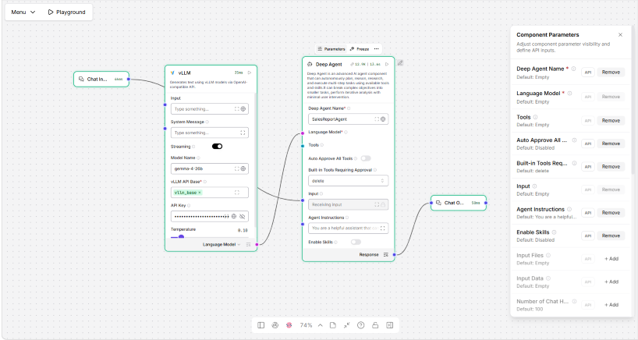
When a RobilityFlow flow invokes Deep Agent, it passes the task instructions and available inputs to the component. The connected language model interprets the request to determine what must be done and what the result should contain.
a. Objective: Analyze monthly sales performance.
b. Required information: Uploaded sales reports and any relevant instructions.
c. Likely actions: Read data, compare periods, identify trends, and prepare a report.
d. Expected result: A clear summary and generated report file.
The user specifies the goal; Deep Agent determines the actions needed to achieve it.
2. Establish the Execution Context
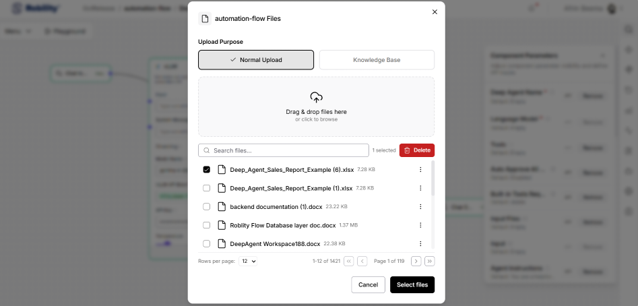
Before carrying out the task, Deep Agent uses the context made available to it. This may include:
a. Task instructions: The requested analysis and output.
b. Input files: The uploaded Excel file, such as Deep_Agent_Sales_Report_Example.xlsx.
c. Conversation history: Relevant earlier messages, when available.
d. Agent instructions or memory: Uses the workspace AGENTS.md file and chat history to retain relevant instructions and context
e. Skills: Enabled guidance or resources relevant to the task.
Only resources that are available in the current configuration can be used. In this example, the sales report is the main source of data.
3. Plan the Execution
Deep Agent identifies the actions needed to complete the request and decides what to do next. The plan is flexible: it can change as new information becomes available or a tool returns a result.
1. Locate and open the uploaded report.
2. Extract the monthly sales figures.
3. Compare figures across months.
4. Identify trends and noteworthy changes.
5. Create the summary report.
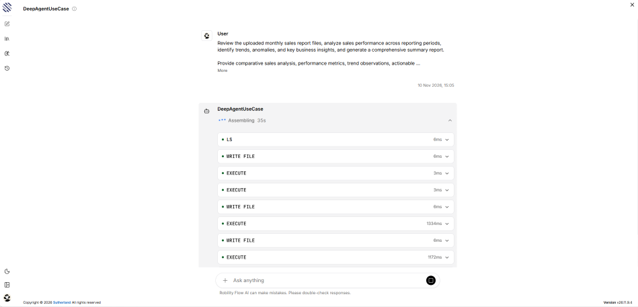
In the example execution, Deep Agent uses LS to locate files, WRITE FILE to create processing scripts, and EXECUTE to run them. It can repeat these actions when more processing is needed.
4. Select Capabilities Based on the Task
Deep Agent uses the connected language model to determine which available capabilities are appropriate for the request. Capability selection is dynamic: not every task requires file access, scripts, a workspace, a terminal, or sub-agents.
a. Tools: Perform actions such as locating files, writing outputs, retrieving information, or running commands.
b. Skills: Supply reusable instructions and supporting resources that guide task execution.
c. Connected component tools: Expose functionality from connected RobilityFlow components.
d. Sub-agents: Carry out delegated subtasks when useful and supported.
For example, a text summarization request may be completed using the connected language model without running scripts. An Excel analysis request may use file tools and the terminal to process data. The available configuration and task requirements determine the actual execution path.
5. Execute Tasks Using Available Tools
Deep Agent performs the actions needed to complete the request. Workspace and Terminal are task-dependent capabilities, not mandatory stages of every execution.
a. Workspace: Used when a task requires access to input files, intermediate working files, or generated outputs.
b. Terminal: Used when a task requires commands or scripts, such as data processing, calculations, or report generation.
c. Other tools: Used when the task requires information retrieval or operations exposed by connected components.
In the monthly sales report example, Deep Agent uses the Workspace and Terminal to process the uploaded Excel data:
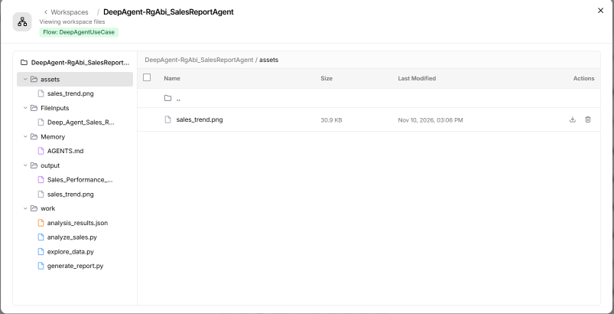
1. LS locates the uploaded report in FileInputs.
2. WRITE FILE creates Python scripts in the work folder to explore and analyze the data.
3. EXECUTE runs the scripts, extracts the monthly figures, and saves intermediate results such as analysis_results.json.
4. WRITE FILE and EXECUTE create the summary report and trend chart in the output folder.
The Workspace holds the input, working, and output files for this example. Other requests may use different tools or may not need Workspace or Terminal operations at all.
6. Review Results and Adjust Execution
After each tool call, its result is returned to the connected language model. Deep Agent uses that result to decide whether to continue, perform another operation, or change its approach.
For example, if the script extracts the required monthly figures, Deep Agent can proceed to trend analysis. If the result is incomplete or a script fails, it may inspect the output, revise the script, or try another available action. A successful tool call does not automatically mean the entire task is complete.
7. Delegate Subtasks When Needed
For tasks that can be divided into separate pieces, Deep Agent can use the Task Tool to delegate work to temporary sub-agents. The main agent then uses the returned results to continue the task.
For example, separate sub-agents could analyze different monthly reports before their findings are combined. Sub-agent delegation was not required in the illustrated sales-report run.
8. Apply Execution Limits and Approval Controls
Execution is governed by configured limits, including iteration, recursion, and context limits. Safeguards may also restrict repeated tool calls with identical arguments.
Some actions require human approval before they can run. In the described configuration, deleting files or directories through the Delete Tool requires approval. If approved, the action proceeds; if rejected, it is not performed.
The sales-report example reads data and creates output files, so it does not trigger a deletion approval. If execution cannot continue because of a limit, missing input, or an unresolved error, the result should clearly indicate what was not completed.
9. Generate the Final Result
When the required operations are complete, Deep Agent prepares a response based on the execution results. Depending on the task and configuration, the output may include:
a. Final response: The findings, analysis, and key observations.
b. Generated files: Reports, charts, or other deliverables stored in the workspace.
c. Execution metadata: Details associated with generated files.
If response validation is enabled, the final response is checked against the configured criteria before it is returned through the Deep Agent component.
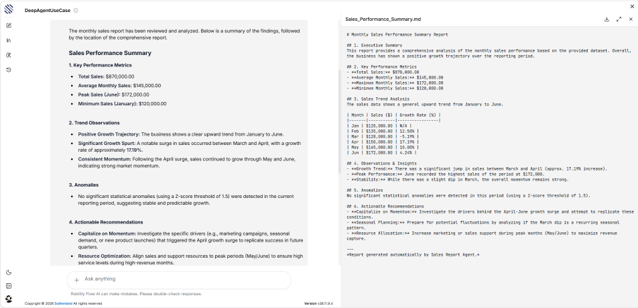
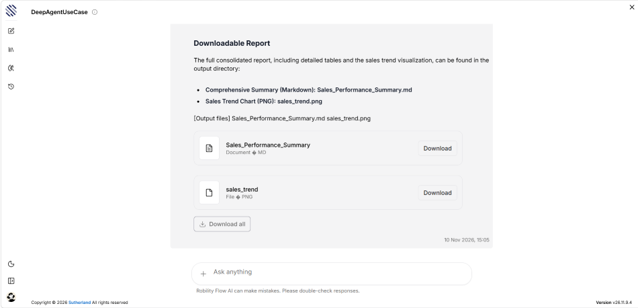
In this example, Deep Agent returns a summary of sales metrics, trends, anomalies, and recommendations. It also creates Sales_Performance_Summary.md and sales_trend.png, which are available as downloadable outputs.
Execution Flow at a Glance
Receive task → Establish context → Plan next actions → Select capabilities → Execute tools → Review results → Continue or adjust → Generate final output
This sequence describes the overall process, not a fixed set of steps for every request. Deep Agent may repeat planning and execution actions, use sub-agents when appropriate, or request approval for restricted operations.
