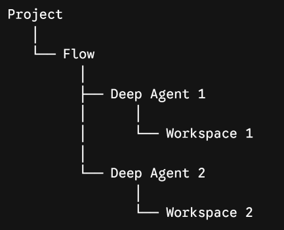
Workspace Management provides a centralized interface in Robility Flow for managing workspaces associated with Deep Agent components. It allows you to browse workspace contents, edit and delete files and folders, download files, export content as a ZIP archive, copy the workspace memory directory path, and delete workspaces.
A workspace is created for a Deep Agent when the Deep Agent starts running. The workspace is associated with that Deep Agent and is reused across subsequent runs until it is deleted.
Each Deep Agent component has its own workspace, If a flow contains multiple Deep Agent components, each component has a separate workspace.
Deleting a workspace does not delete the associated workflow, When the Deep Agent runs again after its workspace has been deleted, a new workspace is created.
Access Workspace Management
Workspace Management is available for a Flow that contains a Deep Agent.
To access Workspace Management:
1. Log in to Robility. 2. Open the required Project. 3. Open the required Flow. 4. On the Flow Canvas, open the menu. 5. Select Workspace Management.
The Workspace Management page displays the workspaces associated with the Deep Agent components in the current Flow.
Workspace List
The Workspace List displays the available workspaces for the current Flow.
Workspace Memory
Field
Description
Workspace Name
Displays the name of the workspace.
Size
Displays the total size of the workspace.
Copy Path
Copies the filesystem path of the workspace memory directory.
Delete
Deletes the workspace after you confirm the action.
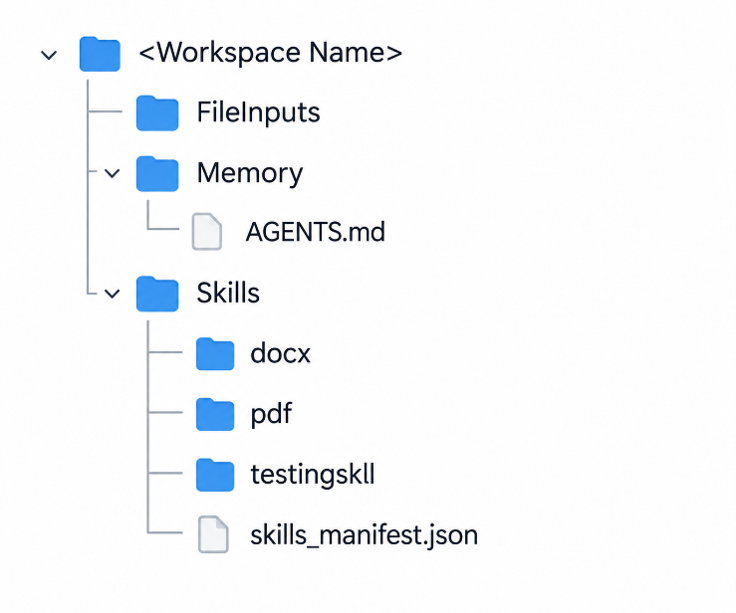
Workspace Folder Structure
Select a workspace to view its contents in a hierarchical folder structure. You can expand and collapse folders and select files or folders to perform the available actions.
A workspace can contain files and folders used by the Deep Agent, including input files, generated files, Skills, and agent memory.
Example:
Note: The workspace can also contain other files and folders created or used by the Deep Agent during processing.
Workspace Contents
Item
Description
FileInputs
Contains files provided to the Deep Agent through the Input Files parameter.
Memory/AGENTS.md
Contains the agent's saved memory and instructions when AGENTS.md Memory is enabled.
Skills
Contains copies of the Skills selected for the Deep Agent.
skills_manifest.json
Contains the manifest information for the Skills available in the workspace.
Generated Files
Contains files, reports, data, and other artifacts created by the Deep Agent.
You can edit or delete files and folders in the workspace, including Skills and AGENTS.md. Before modifying or deleting an item, consider whether the Deep Agent requires it for subsequent processing.
a. Deleting AGENTS.md removes the agent’s saved memory. b. Deleting files from FileInputs prevents the Deep Agent from using those files. c. Deleting generated files permanently removes those files from the workspace. d. Changes made to Skill copies affect only the current workspace.
Skills in the Workspace
Selected Skills are copied into the Deep Agent workspace when the workspace is created. Skill content cannot be edited in Skill Management after it has been uploaded. However, the copies stored in the workspace’s Skills folder can be edited through Workspace Management.
Note: Changes made to Skill files in the workspace apply only to that workspace and do not modify the original Skill managed through Skill Management.
Any files added or modified in the Skills folder are used by the Deep Agent for subsequent processing in that workspace.
Important: When a new workspace is created, its Skills folder is regenerated from the source Skills. Changes made to Skill copies in a previous workspace are not carried forward.
Manage Files and Folders
The available actions depend on the selected item.
Workspace Actions
Action
Applies to
Description
Edit
Files
Opens the file in the File Viewer, where you can view and edit its content.
Download
Files
Downloads the selected file to your local system.
Export
Files and folders
Exports the selected file or folder as a ZIP archive.
Delete
Files and folders
Permanently removes the selected item from the workspace.
Edit Files
To edit a file, select the required file, select Edit to open it in the File Viewer, view or modify the content, and save the changes. Saved changes remain in the workspace and are available to the Deep Agent during subsequent processing, though unsupported or binary files cannot be viewed or edited in the File Viewer, and large files may not load completely into the interface.
Download Files
To download a file, select the required file and select Download; the selected file is downloaded to your local system.
Delete Files and Folders
To delete a file or folder, select the required file or folder, select Delete, and confirm the deletion.
Warning: Deletion is permanent. Deleted files and folders cannot be recovered. Export any content you may need before deleting it.
Export Workspace Content
You can export a file or folder as a ZIP archive by selecting the file or folder, selecting Export, and downloading the ZIP archive; export anything you need before deleting files, folders, or the workspace.
Workspace Behavior During a Run
Workspace content can be edited or deleted while a Deep Agent is running. However, modifying workspace content during execution can affect the ongoing process.
a. Deleting a file or folder during a run removes it from the workspace and stops the workflow. b. Deleting the workspace during a run removes the workspace and stops the workflow. c. Editing a file during a run can affect the behavior of the ongoing Deep Agent execution.
For predictable execution, wait for the Deep Agent run to finish before editing or deleting workspace content.
Delete a Workspace
You can delete a workspace without deleting the associated Flow or Deep Agent component. To delete a workspace:
1. In the Workspace List, select Delete for the required workspace. 2. Confirm the deletion.
Important: Workspace deletion is permanent. Deleted content cannot be recovered. Export any files you may need before deleting the workspace.
Deleting a workspace also deletes:
1. The agent’s saved memory, including AGENTS.md. 2. Input files stored in the workspace. 3. Generated files and other saved content. 4. Copies of Skills stored in the workspace, including any modifications made to those copies.
The associated Flow remain available.
Workspace Data
Workspace contents are read directly from the configured Deep Agent workspace directory on the filesystem and are not stored as separate records in the database.
Best Practices
1. Export files before deleting them or deleting the workspace. 2. Avoid editing or deleting workspace content while a Deep Agent is running. 3. Treat AGENTS.md carefully because it contains the agent’s saved memory when memory is enabled. 4. Changes made to Skill copies apply only to the current workspace and are not applied to the source Skill. 5. Remember that Skill changes are lost when the current workspace is deleted and a new workspace is created. 6. Modify or delete workspace files only when you understand how they are used by the Deep Agent.